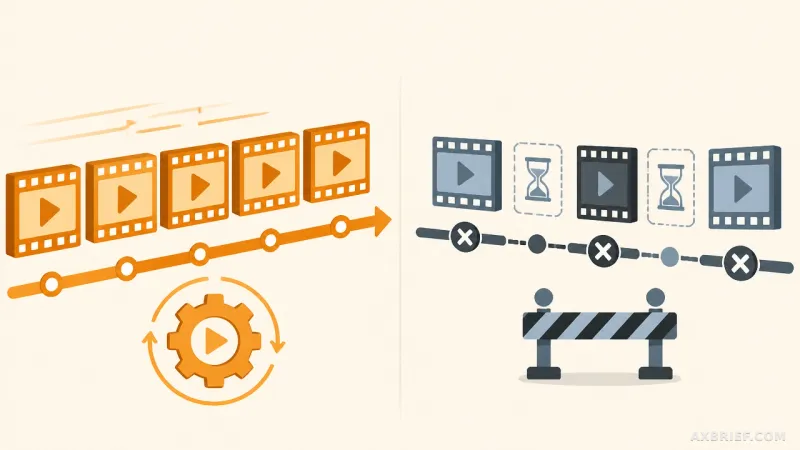
The modern B2B dashboard is no longer just a collection of static charts and tables; it is becoming a conversational interface. Developers are increasingly integrating AI assistants directly into their data portals to help users navigate complex metrics without needing a data science degree. However, a recurring frustration emerges during the final stages of deployment. Even with a powerful backend, the embedded chat window often looks and feels like a bolted-on widget. The colors clash with the corporate brand, the footer screams that it is a third-party tool, and the AI responds with generic definitions that ignore the specific business context of the user. This visual and functional dissonance creates a psychological barrier, making the user feel they have left the product to interact with an external plugin, which ultimately erodes trust in the professionality of the service.
The Technical Architecture of Visual Integration
Achieving a native look and feel within Amazon Quick requires navigating the inherent limitations of web security. Because the embedded chat operates within an iframe, the browser's Same-Origin Policy prevents developers from directly injecting CSS into the iframe's internal HTML elements. You cannot simply target a class inside the chat window to change a button's color or a font's weight. To overcome this, the integration must be handled through a two-tiered strategy: external container styling and SDK-level configuration.
The first tier involves the CSS applied to the outer container that wraps the iframe. Since the internal elements are locked, the developer must control the environment surrounding the chat. This includes defining the exact width, height, border-radius, and box-shadow of the container to align with the application's existing design system. By meticulously shaping the outer shell, the chat window ceases to look like a floating pop-up and begins to appear as a native panel integrated into the dashboard's layout. This ensures that the primary structural elements of the UI remain consistent, providing the first layer of visual cohesion.
The second tier utilizes the `frameOptions` parameter provided by the Amazon Quick SDK. While CSS handles the exterior, `frameOptions` allows developers to control the interior branding elements that the SDK exposes. By default, the embedded chat includes brand attribution and usage policy links in the footer. In a white-label or high-end B2B environment, these elements serve as constant reminders that the tool is an external addition. By configuring the `frameOptions` to remove these attribution markers, the developer strips away the third-party identity. The result is a clean, streamlined interface where the AI assistant appears to be a proprietary feature of the host application rather than a rented service from AWS.
From Generic Bot to Domain Expert
Visual alignment is only half the battle. A chat interface that looks native but speaks like a generic chatbot creates a different kind of dissonance. When a user asks about revenue in a financial dashboard, a standard AI might respond with a textbook definition, stating that revenue is the total amount of income generated by the sale of goods or services. For a professional analyst, this response is useless; it is a generic output that ignores the actual data sitting on the screen. The transition from a tool that feels external to one that feels native happens when the AI adopts a specific persona and understands the organizational context.
This transformation is managed through Persona Instructions within the Amazon Quick console's Chat Agents page. By defining a precise persona, developers can shift the AI's output from general knowledge to data-driven insights. Instead of a definition, a properly configured agent can provide a specific analysis: 2025 Q2 revenue reached $8.89 million, representing a 12.5% increase compared to the $7.05 million recorded in 2024 Q2. This level of specificity transforms the AI from a general-purpose assistant into a domain expert. Furthermore, the Persona Instructions allow developers to set knowledge boundaries, ensuring the AI does not speculate on data outside its authorized scope, which is critical for maintaining accuracy in regulated industries like finance or healthcare.
To bridge the gap between these persona settings and the end-user, the SDK `content options` are employed. These options determine which UI elements are visible and ensure that the user's query is routed to the correct custom agent. When the visual branding, the response tone, and the agent routing are synchronized, the AI ceases to be a separate feature and becomes an extension of the data itself. The user no longer feels they are chatting with a bot; they feel they are interacting with the dashboard's intelligence layer.
Orchestrating the UI with sendPrompt()
The final step in removing the external tool feel is eliminating the friction of manual input. Requiring a user to type a complex question to analyze a chart is a cognitive burden that disrupts the flow of data exploration. The `sendPrompt()` method in the SDK solves this by allowing the application's UI to trigger chat interactions programmatically. This method creates a direct pipeline between a UI event—such as a button click or a chart selection—and the AI's analysis engine.
In a practical implementation, such as a financial performance dashboard, a developer can place a quick-action button labeled Revenue in the chat panel header. When the user clicks this button, the application calls the `sendPrompt()` method, which automatically sends a pre-defined, context-aware question to the assistant. The user doesn't have to think about how to phrase the request; they simply click, and the AI immediately generates the relevant analysis. This turns the chat window into a reactive component of the UI rather than a passive text box.
This capability becomes even more powerful when linked to specific data points. If a user selects a specific dip in a revenue line chart, the application can capture that date range and metric, then pass it into `sendPrompt()` as a detailed query. The AI then receives the exact context of what the user is looking at, allowing it to provide a targeted explanation for that specific anomaly. By synchronizing the visual data exploration with linguistic analysis, the `sendPrompt()` method effectively merges the dashboard and the chat into a single, interactive experience. The AI is no longer a side-car; it is the engine that drives the interpretation of the visual data.
Integrating an AI assistant into a B2B dashboard is a journey from simple embedding to deep integration. It begins with the structural layout of the container, moves through the removal of third-party branding via `frameOptions`, evolves into the creation of a domain-specific persona in the Quick console, and culminates in the programmatic linking of UI events via `sendPrompt()`. When these elements are executed in sequence, the result is a seamless intelligence layer that enhances the professionality of the product and the efficiency of the user's analysis.
This architectural approach transforms the dashboard from a place where users simply view data into an environment where they can actively interrogate it.